
Every feature, end to end.
Scripture Live App is a live-detection studio for sermons. Here's everything inside the app — from the moment audio enters your mic to the PDF on the pastor's desk Monday morning.
How it works.
Five steps from spoken word to projected verse. Everything else on this page is the deeper view of these five moments.
- Step 1
Microphone in
Operator clicks Start. Audio streams in real-time.
- Step 2
Speech becomes text
Live transcription appears word-by-word.
- Step 3
Three engines listen
Pattern, semantic, and AI cascade run in parallel — sub-500ms for explicit refs, <2s for paraphrases.
- Step 4
Operator stays in control
Confident matches auto-display. Anything uncertain queues as a one-click suggestion.
- Step 5
The projector updates
Verse appears on the church screen, OBS overlay, vMix output — anywhere you wired it.
Three engines, one decision.
All three run in parallel on every transcript segment. The system picks the highest-confidence match, dedupes overlapping detections, and routes the result to the operator within the latency budget.
Pattern engine
Catches explicit references the moment they're spoken.
"John 3:16", "first Corinthians thirteen verse four", "Psalms 23" — all parsed locally, displayed in under 500ms. Handles 100+ book aliases and abbreviations.
Semantic engine
Finds paraphrases without an internet connection.
Local AI vector search across every verse in every translation. Catches "blessed are those who mourn" even when the speaker doesn't quote exactly. Runs entirely on the operator's machine.
AI cascade
Resolves the truly ambiguous cases.
Our in-house AI engine handles synoptic gospel parallels, OT/NT echoes, theological allusions. Fires only when local engines aren't confident — never wastes cycles or quota.
Built for how preachers actually preach.
Sliding context window
Detection runs over the last three transcript segments simultaneously, so a verse split across two sentences still matches.
Scripture context-carry
When the pastor says "turn to Genesis 18", the system remembers book + chapter for 3 minutes. Subsequent "verse 23" / "verse 32" resolve to Genesis 18:23 / 18:32 automatically. Follows the pastor through a passage just like the congregation does.
Loose-context paraphrase recognition
Handles natural speech: "Ecclesiastes, I believe, in chapter 8…" parses correctly. Filler words don't break detection.
Ambiguous-name guards
"Mark told me a story" doesn't trigger the book of Mark. The engine knows when "Mark", "John" or "James" is a person's name vs a Bible book.
Smart deduplication
The same verse won't fire twice within 30 seconds of itself. Cross-translation duplicates collapse — operator sees one card per verse, not five.
Tuned on a full 66-book read-through
A spoken test through every book sharpened the real-world cases: numbered books resolve right ("First John" → 1 John, not the gospel), ordinal and spoken-number verses ("the fourteenth", "one one nine" → 119), filler words ("chapter number 6"), and dozens of mishearings.
Confidence-tiered display.
Every detection lands in one of two columns based on how confident the system is — so the operator never has to wonder which matches to trust.
High-confidence picks — pattern matches, paraphrase matches above the auto-display threshold. These auto-fire to the projector.
Lower-confidence semantic matches. Wait for the operator's click before going live.
Paraphrase matches from the LLM route by confidence — above 90% join the Detected column, the rest wait in Verse Suggestions. Either way the LLM never auto-projects: the operator confirms before it hits the screen.
Each card shows a colored left border by source, a confidence pill (high / medium / low), the detected verse text, and the transcript snippet that triggered it.
Built for how preachers actually speak.
Live preaching is messy — stuttered words, mid-sentence rephrases, speech-to-text mishearings, single-chapter book shortcuts. Every example below comes from real services and is now handled automatically.
- Heard
"chapter chapter 2"
ResolvedChapter 2
Filler-word stutters are stripped before resolution.
- Heard
"Hey, guys. Chapter 1 verse 4."
ResolvedHaggai 1:4
A sentence break between book and chapter no longer breaks parsing.
- Heard
"Hosiah 6:6"
ResolvedHosea 6:6
"Donut" → Jonah, "Route" → Ruth, "Number" → Numbers — all aliased and tested against real services.
- Heard
"versten" / "vestan"
Resolvedverse 10
Phonetic fusions are split back to their parts before lookup.
- Heard
"Obadiavestan"
ResolvedObadiah 1:10
Even fully-fused tokens resolve cleanly.
- Heard
"Obadiah verse 15"
ResolvedObadiah 1:15
Single-chapter books skip "chapter 1" — the parser knows.
Plus scripture context-carry — when the preacher says “verse 8” without naming the book, the app knows which passage they're in. And speech recognition tuned for non-American English (West African, Caribbean, Indian, mixed-language preaching).
"Mission Control" for the AV booth.
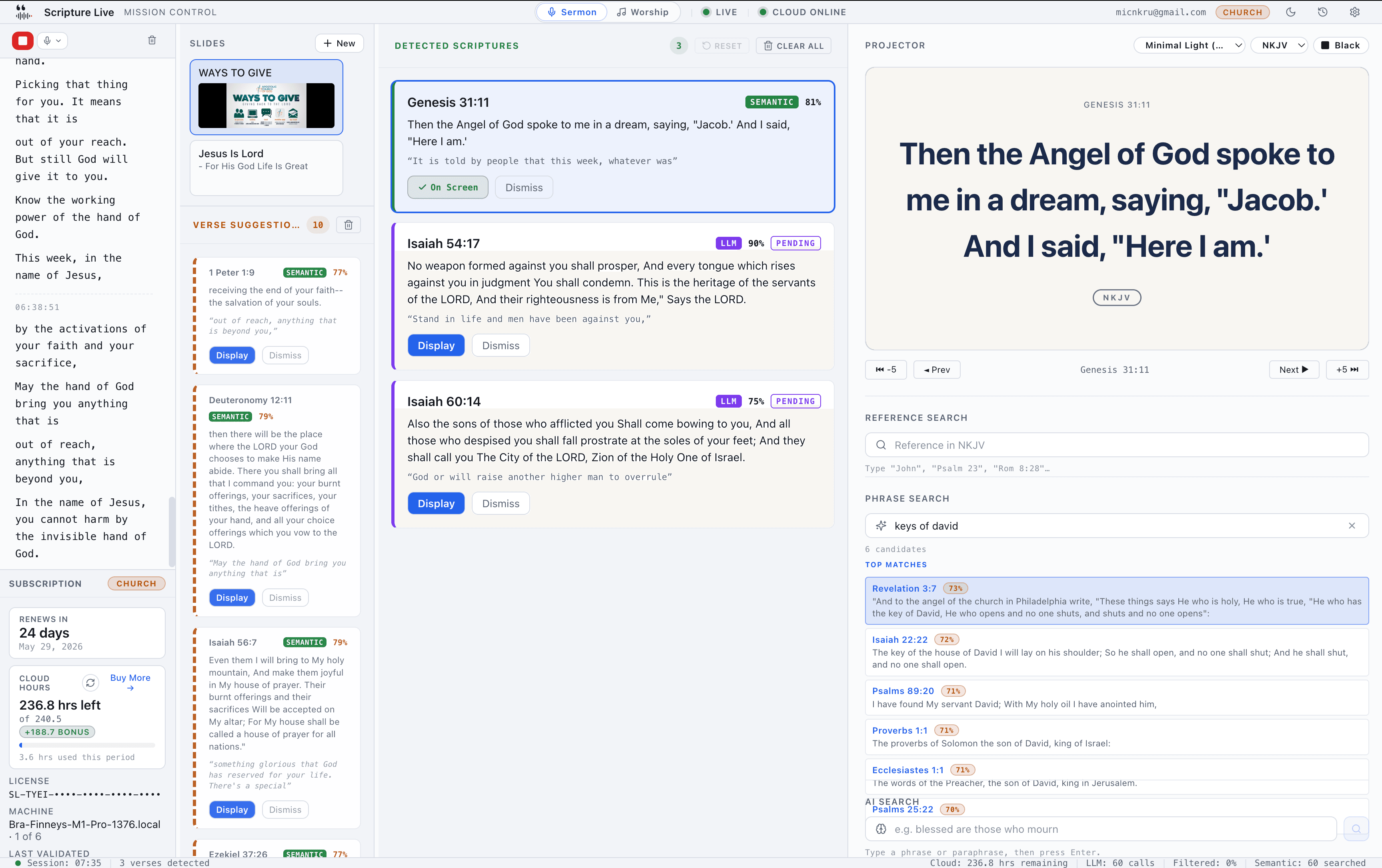
Everything the operator needs in one window. Resizable, themeable, and tuned for split-second decisions during live worship.
Resizable five-column layout.
Transcript
Live transcription with detected phrases highlighted inline so the operator can scroll back and see why a verse matched.
Slides + Pinned Scriptures
Custom slides on top, your pinned scriptures filling the column beneath — tonight's prepared slides and set-list verses share one rail.
Verse suggestions
Its own column now — lower-confidence picks waiting for review. Click to display, or clear the column with one tap.
Detected
High-confidence verses, auto-displayed or one-click ready.
Sidebar
Projector preview, the three search tools, translation picker — all in one rail.
Drag the splitters between columns to whatever proportion fits the operator's monitor — panels now collapse much smaller to reclaim space. Layout persists per machine — set it once, it stays.
Per-card actions on every detection.
Display
Push the verse to the projector. Nothing goes live without a click.
Edit
Adjust the translation or expand the verse range before sending — pastor said “verses 4 through 7” but the AI matched only verse 4? Edit, expand, send.
Dismiss
Tell the system this match was wrong. The decision logs into session history.
A Clear All button on the suggestions header wipes the column when the operator wants a fresh slate.
Live transcript with hit highlighting.
Speech appears word-by-word in real-time. As detections fire, the matching phrases get highlighted inline. Scroll back to see why a verse matched. Right-click to copy the full transcript.
Status bar — at-a-glance system health.
STT status
Live, Connecting, Reconnecting, or Offline — color-coded dot that's always visible.
Cloud status
Online, Degraded, or Offline. Operator knows immediately when AI detection is in fallback mode.
Account & tier
User email + license tier badge so the right operator is signed in on the right machine.
Quick-access
Session history and Settings buttons one tap away.
Bottom bar — session telemetry.
Real-time counters of what's happening under the hood so the operator can verify the system is working without guessing.
Light, Dark, and System appearance.
Pick the operator window's theme — and System mode follows the OS preference live, so flipping macOS appearance or GNOME color scheme re-applies instantly without a restart.
Run the whole service without touching the mouse.
Operators told us cursor travel was the bottleneck during a fast preacher. Every action in the live-display loop now has a one-key shortcut, with safety nets so a slip doesn't go on screen.
Every binding the operator needs.
| → / ← | Next / previous verse |
| Space | Toggle Show / Black Screen — the panic key during a transition |
| ↑ / ↓ | Move the dashed selection ring through Detected scriptures |
| Enter | Display the selected scripture on the projector |
| Backspace | Dismiss the selected scripture (with 5-second undo) |
| ⌘/Ctrl + K | Jump cursor straight into the Reference Search box |
| ⌘/Ctrl + T | Open the translation menu — type to filter ("nk" → NKJV), arrow + Enter |
| T / ⇧T | Cycle to the next / previous translation — re-renders the on-screen verse instantly |
| ⌘/Ctrl + E | Quick-edit the live reference — drops it into search with the verse number highlighted |
| ⌘/Ctrl + Shift + E | Quick-edit the live reference with the chapter highlighted instead |
| ⌘/Ctrl + Z | Undo the most recent destructive action |
| ⌘/Ctrl + Shift + R | Reset the scripture-context carry |
| ⌘/Ctrl + Shift + ⌫ | Clear All — wipes Detected + Suggestions atomically |
| ⌘/Ctrl + , | Open Settings |
| ? | Open / close the on-screen shortcut cheatsheet |
| Esc | Close the topmost modal / cancel an edit |
Safety nets so nothing fires by accident.
Selection ring before you commit
A dashed accent outline on the Detected card the keyboard is pointing at — visually distinct from the solid “this is on screen now” ring. The operator can see what Enter will display before pressing it.
5-second undo on every destructive action
Dismiss or Clear-All pops an undo toast. One click — or ⌘Z — and it's back. Single-slot, most-recent-wins, with a label that names what it's undoing.
Focus-aware
Typing into a search field or Settings input doesn't fire shortcuts. International IME composition is respected too — Twi keyboards behave.
No more Space-after-click trap
Clicking Display with the mouse used to leave Space bound to that button. Space now always toggles Black Screen, never the last-clicked control.
Three layers of discoverability.
Tooltips name the key
Hover any button and the tooltip shows its shortcut. Mac glyphs (⌘⇧R) on macOS, plain text (Ctrl+Shift+R) on Windows and Linux — auto-detected per OS.
? opens an on-screen cheatsheet
A ? icon in the StatusBar — or the ? key — drops a compact reference card in the bottom-right of the operator window.
Settings → Shortcuts tab
A permanent reference inside Settings. Every key binding plus every reference-search abbreviation in one place — easy to send to a new volunteer.
The preacher runs the screen — hands-free.
With a verse on screen, the preacher advances the projector and changes translation just by speaking — no operator click. A live, cloud-powered listening feature on paid plans; the operator's keyboard stays the authoritative manual control.
Two things the room can do out loud.
“Next verse.” “The verse before.”
“Next verse”, “next one”, “go to the next verse” or just “next” advances the projector; “previous”, “back” or “the verse before” steps back. The preacher walks a passage without looking at the booth.
“Give me the King James.” “Read it in Asante.”
Name a translation after a carrier phrase and the on-screen verse re-renders in it — King James, the Passion, Akuapem or Asante Twi, any of the bundled editions. Scoped tightly so normal preaching never flips the screen.
How it stays out of the way.
Fires the instant it hears the words
Voice commands run on the live (interim) transcript, so the screen reacts as the preacher speaks — no waiting for a pause.
Only while a verse is on screen
With nothing displayed, "next verse" does nothing — so it can never misfire during open preaching.
Deliberately strict grammar
A translation only switches after a carrier phrase ("give me…", "switch to…", "read it in…") immediately followed by a known name. A bare translation word never triggers it.
Tuned for real rooms
Handles the common mishearings of "verse" and phonetic aliases for translation names ("Passion" → TPT, "Akuapem/Asante" → the Twi editions).
The operator keeps the final say from the keyboard: T / ⇧T cycle translations and ⌘/Ctrl+T opens a type-to-filter menu — the authoritative control for anything voice doesn't catch. Voice control needs a live detection session, so it runs on paid plans, not in free offline mode.
Three search tools, one sidebar.
The operator's safety net for when the pastor goes off-script. All three live in the same sidebar — pick the right one for the moment.
Reference search
Smart parser handles every common abbreviation. “John 3:16”, “Psalm 23”, “1 Corinthians 13:4-7”, “Rom 8:28”. Results render in the active translation, click to display.
Verse ranges display in full: type John 3:16-18 or Psalm 23:1 to 3 — a dash or the word “to” — and the whole passage goes on screen together, each verse numbered, the same way a range picked up by live listening already appears.
Power-user mode (1.1.4+): type joh3:16, 1co13:4, or ps23 — every book has a 1-, 2-, or 3-letter prefix, plus universal Bible-software aliases (mt, mk, lk, jas, dt). Separators are flexible: joh3:16, joh 3:16, joh3.16 all resolve. Placeholder rotates through examples every 3.5s so new operators discover it passively.
Phrase search
Local AI semantic search returns ranked candidates as you type. Works fully offline — no cloud round-trip, no quota burn. Fastest search in the app.
AI search
Our in-house AI engine returns 3–5 ranked candidates organized into Direct match, Likely match, and Related verses — for synoptic parallels and half-remembered fragments.
| Reference | Phrase | AI | |
|---|---|---|---|
| Trigger | Type a reference | Type a fragment / paraphrase | Type, hit Enter |
| Speed | Instant | Near-instant (offline) | ~1–2s |
| Cost | Free | Free (no hours used) | Counts against cloud hours |
| Best for | "John 3:16", "1 Cor 13:4-7" | "the lord is my shepherd" | "healing in the gospels" |
Tonight's playlist — pin songs in Worship Mode, pin scriptures in Sermon Mode.
A dedicated rail for the songs and verses you've already lined up for this service. Pin from anywhere in the app with a single star; the operator's set list stays one click from the projector throughout the night.
Two rails, one pattern.
A new column between the Catalog and the Stage.
Star any row in the Catalog or any search hit to pin it into tonight's set list. Click a pinned row to load to the stage, double-click to take live — same gestures as the Catalog. No cap on pins; the column defaults open on widescreen monitors and stays where you toggle it from there.
Pin from any verse-bearing surface — five sources, one rail.
Detected Scriptures, Verse Suggestions, Reference Search, Phrase Search, AI Search — every card or row with a verse gets a pin star. The pinned panel sits in the second column and shows the reference, translation badge and a two-line preview. Click a row to push to the projector.
The mechanics, both rails.
Reorder, unpin, undo
Hover-revealed ↑/↓ chevrons reorder rows. The same star un-pins. Bulk clear shows a 5-second undo toast — one click brings everything back.
Cross-source dedup for scriptures
Pin John 3:16 from the Detected card, then again from Phrase Search — one row, not two. The first source is recorded for telemetry; the operator just sees a tidy list.
Persists across services
Pinned songs and pinned scriptures survive an app relaunch. Build the set list during rehearsal, open the same window on Sunday morning — your pins are exactly where you left them.
Translation-aware fallback
Pin John 3:16 NIV and later uninstall the NIV pack — the pin stays put. The row shows a muted 'Translation unavailable' placeholder with a one-click shortcut to Settings to re-download.
The set list is the operator's — local to the machine, not pushed out to remote attendees on the Worship lyrics remote. Build it during rehearsal, lean on it during the service. When tonight ends, the pins are still there for next week — keep what you re-use, clear what you don't with the bulk-unpin button and its 5-second undo.
One session. Two independent feeds.
A native projector window for the church screen, plus two simultaneous browser-source feeds — one for scripture, one for worship lyrics. Each holds its own state so OBS scenes switch independently.
Projector window — Electron-native.
Borderless fullscreen
Opens fullscreen on the secondary display. No chrome, no taskbar, no surprises.
Pick the monitor
Operator picks which physical display via a dropdown — any number of connected monitors supported.
Black-screen toggle
One key blacks the projector for moments between verses.
Manual navigation
Previous, next, jump ±5 verses — chapter context shifts automatically when you cross boundaries.
Translation swap
Switch the displayed verse to another translation in one click — no re-projection, no flicker.
Two browser-source feeds, one session.
Scripture and worship lyrics each broadcast on their own port, holding their own state. Build a Sermon scene in OBS pointed at the scripture feed and a Worship scene pointed at the lyrics feed — switch between them without touching the desktop app, and neither feed blanks the other.
http://localhost:5544
Verse, reference, translation badge. Append ?transparent=true for a no-background overlay variant.
http://localhost:5545
Song title, lyrics, section badge. Append ?type=l3 for a transparent lower-third strip — drop straight onto a live camera feed.
Multiple concurrent clients
Broadcast PC, confidence monitor, tablet beside the pastor — all reading the same feed simultaneously.
Lockstep updates
When the operator clicks Display, every output for that feed flips at the same moment. Switching the lyrics feed leaves scripture untouched, and vice versa.
Lower-third overlay (l3)
The lyrics feed's
?type=l3mode renders a transparent dark gradient strip across the bottom 38% of the source — cleanly composites over busy video.Text-only lower-third
Prefer no backdrop at all? A new text-only variant floats just the verse and reference straight over your camera with nothing behind them — the readable dark-strip version stays available when you want maximum legibility.
Container-aware preview
What the operator sees in the preview pane is byte-for-byte what hits the projector and OBS. Same component, same theme, same proportions — no “looks fine here, off on the wall” surprises.
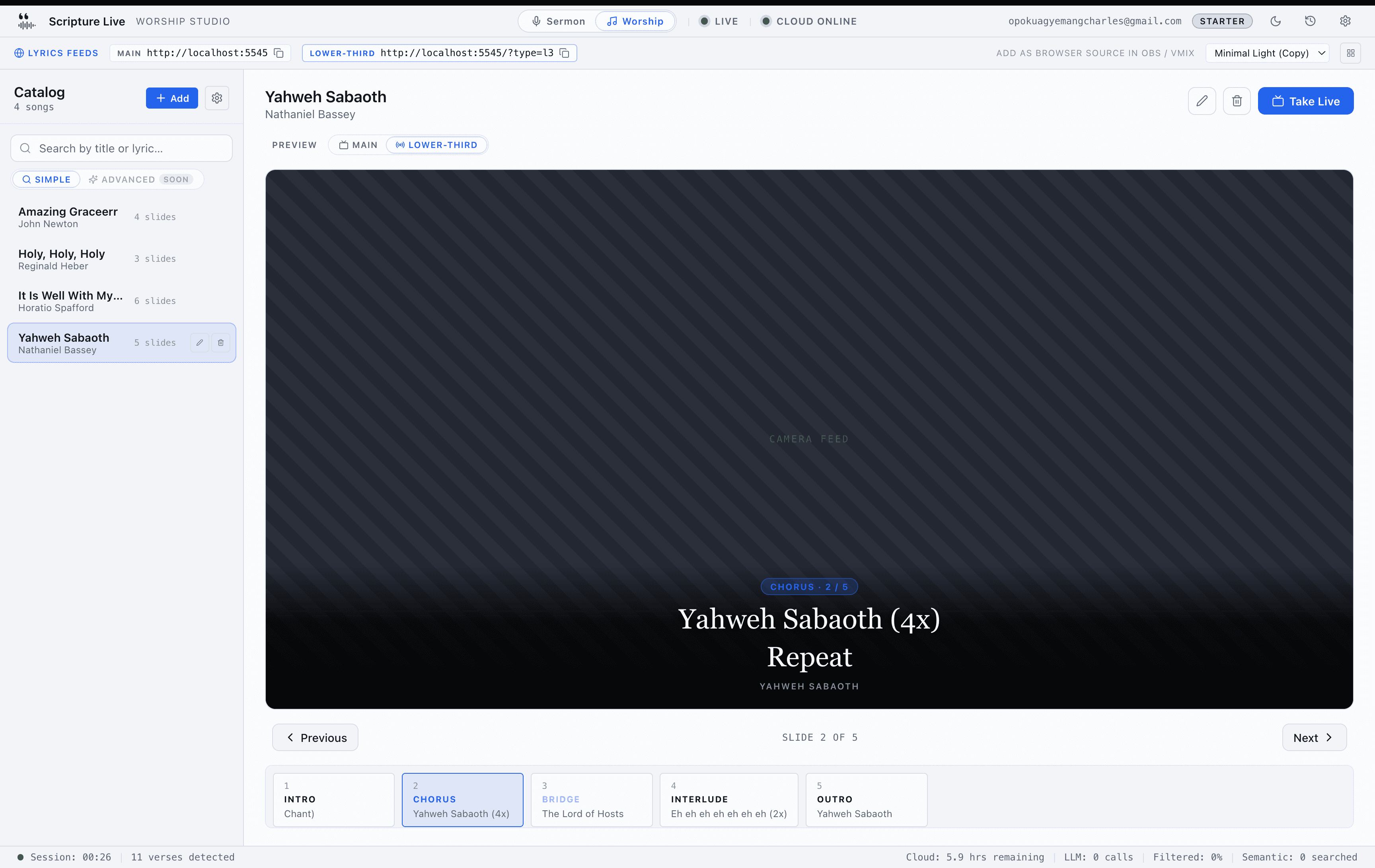
?type=l3 URL into an OBS Browser Source layered above your camera feed.Multi-display awareness, set once.
Operator window stays on the primary display where the AV operator is sitting. Projector window goes to whatever monitor is connected to the projector. Settings persist — set the layout once, it's there next service.
Turn the blackout into a branded “we'll begin shortly” screen.
The Black Screen button — and the Spacebar panic key — no longer has to mean a dead black projector. Design a hold screen with your church logo, a headline and a background, and that's what the room sees between segments. Off by default: plain black until you choose to set it up.
Design it once in Settings → Hold Screen.
Your logo, your placement
Drop in the church logo and put it anywhere — nine placements including dead centre — with adjustable height and opacity.
A headline that reads from the back row
“Welcome to…” or “We'll begin shortly” — full control over font, size, weight, colour, alignment and vertical position.
Solid colour, image or video background
A brand colour, a still image, or a looping video behind it all. Stick to JPG, PNG, WebP, MP4 or WebM, and keep video loops a reasonable size.
Live preview + Test on Projector
A scaled preview shows the design as you build it; one button pushes it to the real projector so you can check it from the seats.
Same screen on the projector and the stream.
With Hold Screen on, pressing Black Screen or Space shows it on both the projector window and the OBS / vMix feed — they stay identical, so the room and the livestream never diverge. Leave it off and the blackout is plain black, exactly as before. Nothing changes for churches that don't opt in.
One app. Sermon detection up front. Lyrics on the worship side.
A second workspace toggled at the top of the operator window. Switch from scripture detection to a lyrics catalog with one click — same session, same machine, same OBS feeds running in parallel.
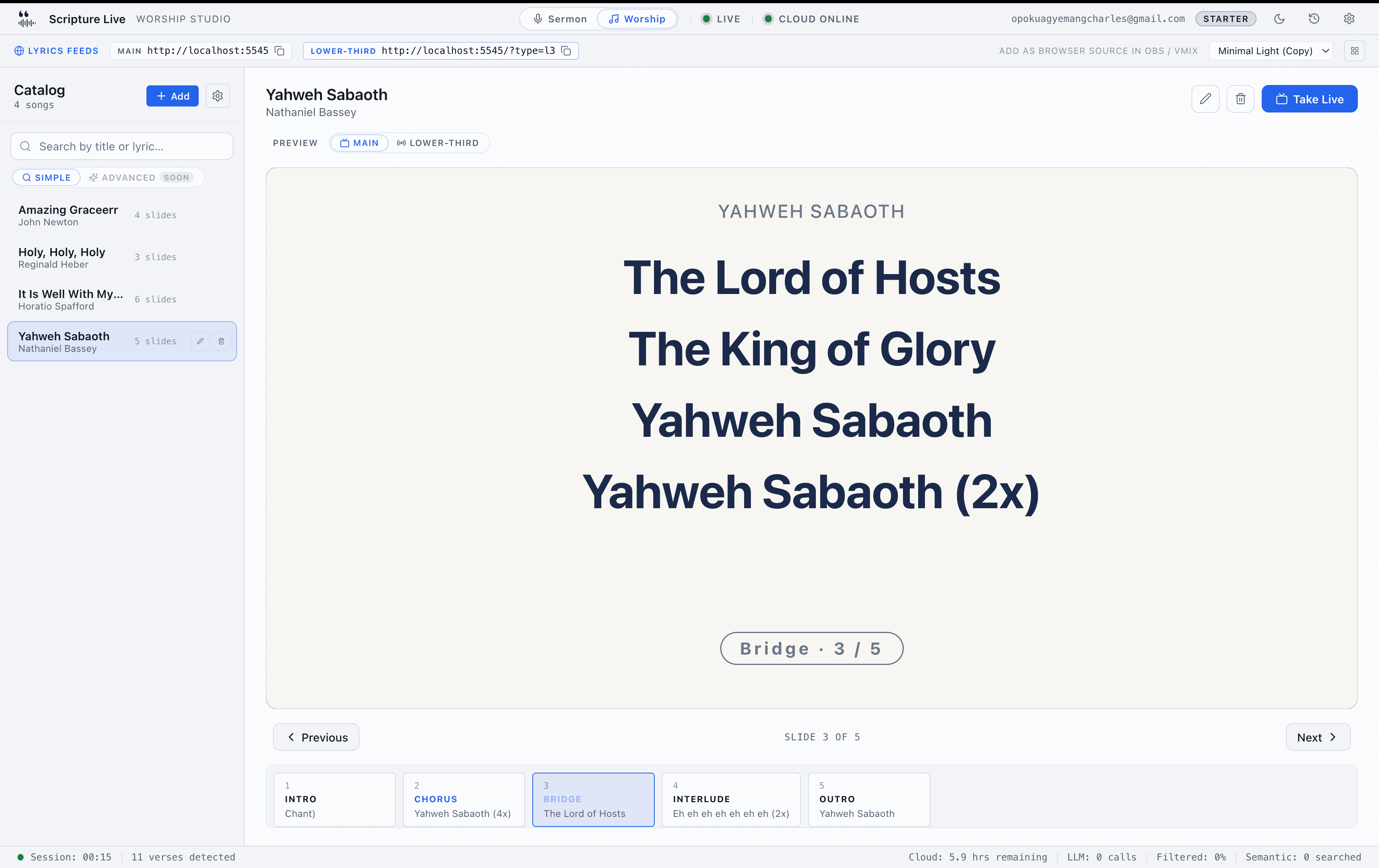
Two workspaces, one toggle.
Sermon holds the live transcript and scripture detection. Worship holds the song catalog and slide control. Choice persists across launches — quit mid-service and you land back where you were.
Local song catalog — your library, your machine.
Structured songs
Title, artist, optional CCLI number. Each song breaks into sections — Verse (auto-numbered), Chorus, Bridge, Pre-Chorus, Tag, Intro, Outro, Interlude.
Sections become slides
No manual slide breaks to manage — each section is a slide on the projector. Add a verse, get a slide.
Local-first
Songs live on the operator's machine — even the ones pulled from an online pack are stored locally once loaded. No subscription fees for the catalog itself, no licensing risk on third-party data.
Inline catalog management
Add, edit, and delete songs from the worship workspace itself — no settings dive. Newly added songs auto-load into the stage.
Paste raw lyrics — they format themselves.
Copy a song's lyrics from anywhere and paste them straight in — Scripture Live cleans them up and splits them into verses, a chorus, and the other sections automatically. No manual formatting, no typing section labels, no slide breaks to place. Tidy anything you like, and it's ready for the projector in seconds.
Fill the catalogue fast.
Online song packs
New church staring at an empty catalogue? Load a curated worship-song collection from the cloud in a single click — hymns like Amazing Grace, Holy Holy Holy, and Blessed Assurance, in ready-made packs that stay up to date automatically. New songs and fixes arrive without waiting for an app update. Preview what's new before you confirm; re-running skips anything you already have. Public-domain only, no CCLI-licensed content.
Bulk CSV import
Move a whole songbook at once. Download the template, fill one row per song with
[VERSE 1]/[CHORUS]section markers, upload, preview new-vs-duplicate, and import the new ones in one atomic batch. Handles the usual spreadsheet quirks — BOM, quoted multi-line lyrics, commas in titles.
Going the other way, export the whole catalogue to one CSV — the same template the importer reads, so it round-trips losslessly between installs (commas in titles, embedded quotes and multi-line verses all survive). It's the recommended backup, and a host-only Clear all wipes the catalogue behind a strong “export first” confirm when you want a clean slate.
Instant catalog search.
Simple search — sub-10ms
Full-text search across titles, artists, and lyric lines. The matched line is highlighted in the result so the operator sees exactly why it matched. Click to load.
Advanced semantic search
Coming next — an Advanced toggle that finds songs by meaning, not just word match. (“A song about grace and rescue” → the right song, even when the title doesn't mention it.)
Slide control built for live worship.
Click to preview
Single-click any catalog row to load the song into the workspace. Stays in preview — doesn't go live yet.
Double-click to take live
Double-click sends the song to the lyrics feed immediately. ON AIR pulse pill confirms what's on screen.
Keyboard or click navigation
Once live, arrow keys, spacebar, or the slide rail walks through sections. The projector follows in real-time.
Stop blanks the feed
One click stops the song and clears the lyrics output — without touching the scripture feed.
Edit a song while it's on air.
Catch a typo or a missing line during the worship set? Edit the slide inline — the projector picks up the new lyrics on the next slide change automatically. No need to take it down and re-load.
Built for streaming straight out of the box.
The worship workspace exposes both the main lyrics URL and the lower-third URL as one-click copy chips at the top — paste either into an OBS Browser Source and you're live. Scripture stays on its own feed at port 5544; nothing collides.
Workspace touches.
Quick light/dark toggle
Sun / moon icon in the top bar — flip the operator UI theme without diving into Settings.
Worship-mode theme picker
Switch the projector's lyrics theme from the top of the workspace; the projector updates within a frame.
Panel-visibility gear
Hide the catalog rail, the slide rail, or both for a tighter live view during a service. Persists across launches.
Improved speech recognition
Upgraded recognition pipeline — better accent handling for West African, Caribbean, Indian, and mixed-language preaching. Same low-latency budget as before.
Pair a tablet on stage. Control lyrics from there.
Your worship pastor stands on stage with an iPad and flips through verses, choruses, and bridges in real time. No backstage runner, no eye contact gymnastics — just lyrics that follow the singer.
- Operator opens Settings → Remote Control on the booth and reads the rolling 6-digit PIN.
- Tablet visits
http://<host-ip>:5546/controlon the same WiFi. - Tablet enters the PIN. Pair completes. PIN rotates immediately — single use.
- Stays paired across reloads and app restarts. Operator can revoke any device from Settings.
The remote is a worship-lyrics control surface, not a full operator clone. Sermon detection, audio capture, settings, and account stay safely at the booth — and building the catalogue (Add Song, CSV import, Starter Pack) stays on the host computer too.
What the remote can do
- Switch the projector theme (light / dark)
- Pin songs and build tonight's set list over the LAN
- Edit and delete existing songs
Match the count to your service.
- Starter — 1 paired tablet or phone
- Team — 3 paired devices
- Church — unlimited paired devices
A worship leader on stage advances verses while singing. A backup tablet at the keys takes over if the primary disconnects. The booth operator stays focused on sermon detection — no shouting across the sanctuary, no last-minute slide reorders.
Put anything on the screen.
Sermon notes, prayer points, offering details, announcements — type once, double-click to display. Text, image, or a full PowerPoint or PDF deck — your screen. Same feature, same UI, in both the free Offline mode and the paid Full mode.
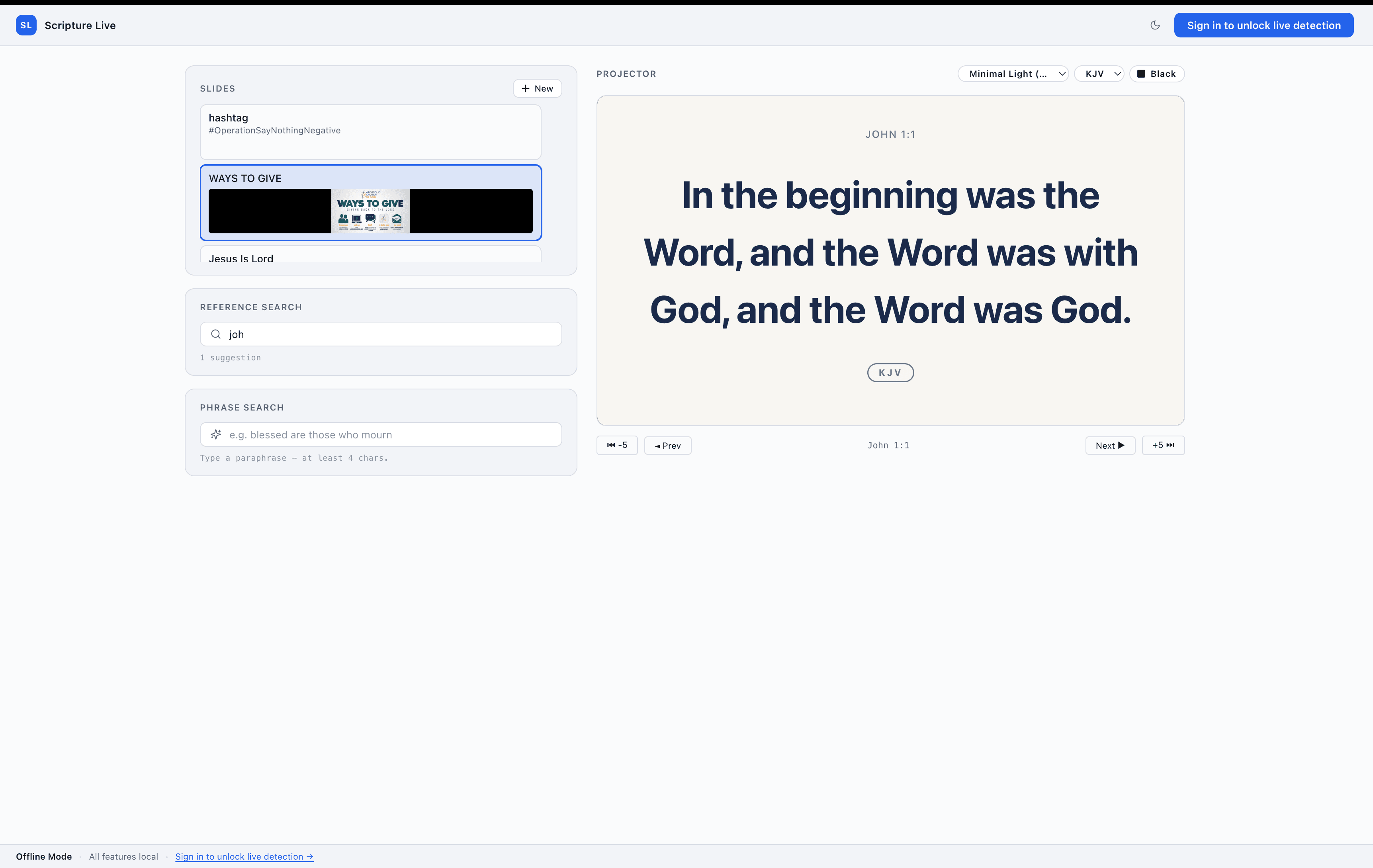
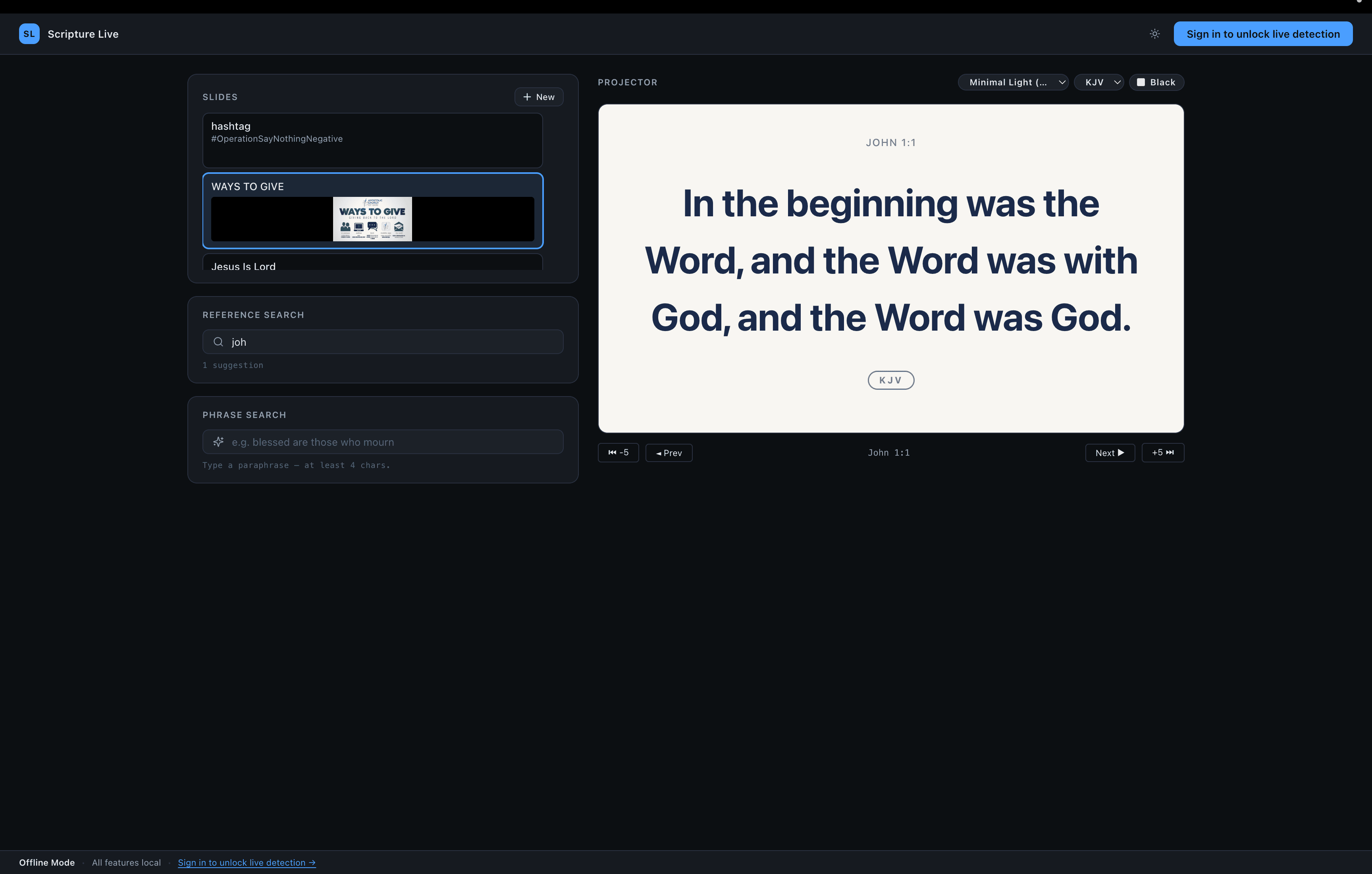
Type a slide. Drop an image. Project it.
Text slides
Title, body, or both. Line breaks preserved. Useful for prayer points, announcements, sermon outlines, welcome screens.
Image slides
PNG, JPEG, WebP, or GIF up to 10 MB. Banner artwork, QR codes, series titles, photo callouts.
Three image fit modes
Fit shows the whole image (may letterbox). Fill covers the screen (may crop edges). Stretch distorts to fill exactly. Pick per slide so a QR code stays whole and a hero photo fills the screen.
Single-click select, double-click display
Browse without sending things to the projector by mistake. Hit it twice when you mean it.
Turn what the pastor just said into a slide.
When the pastor drops a line worth remembering — a key point, a prayer point, “write this down” — the operator clicks those lines in the live transcript, hits Make slide, tidies the wording, and displays it. Nothing goes on screen until the operator chooses. Because it reads from the live transcript, Sermon Notes runs during live sermon detection — part of the paid plans, not offline mode.
Click the transcript, not a blank box
Click where the point starts, click where it ends, and the operator's words are captured straight from what was said — no retyping mid-service.
Edited before anything shows
Fix a mishearing or trim the wording in place first. The slide displays only when the operator sends it — never automatically.
The Point template — a designed look
A small label chip on top (SERMON NOTE, PRAYER POINT — whatever the church types) and the point below, big and clean. One line makes a bold statement; several become a tidy bulleted list. Follows your projector theme automatically.
A clearer slides list
Every slide now shows what it is at a glance — color-coded icons for notes, text, PDF decks, images and video, with fuller titles and previews.
Bring your own deck — PowerPoint or PDF.
Already built your slides somewhere else? Import a PowerPoint (.pptx / .ppt) or PDF and page through it live, right alongside your other slides. PowerPoint is converted automatically on import; PDFs play as-is — no extra software to install.
Import a PowerPoint or PDF
Drop in a .pptx / .ppt or PDF deck and display it full-screen on the projector or in your live stream.
Page through it live
Advance pages with the arrow keys during the service — the same simple control whether it's a 3-slide announcement or a 30-page handout.
Renders everywhere your output goes
The projector window and every OBS / vMix browser source show the deck identically, edge to edge.
Sits alongside everything else
Decks live in the same slides panel as your text and image slides, ready next to live scripture detection — switch between them with a double-click.
Fire your first nine slides from the keyboard.
⌘1–⌘9 (Ctrl+1–9 on Windows and Linux) display custom slides one through nine instantly — no mouse, no scrolling the rail. Past nine, use the click flow. It's a silent no-op if you have fewer slides, and ignored while you're typing.
Plays nicely with everything else.
Slides override scripture only
Worship lyrics broadcast on a separate OBS scene at
localhost:5545. You can preach over a slide while the band keeps lyrics on the streamed broadcast — two independent feeds, no conflict.Live in OBS automatically
Slides hit the same
localhost:5544browser source that scripture uses. Your OBS / vMix scene picks them up — no extra setup.Search & organize
Filter your library when it grows past a handful. Edit and delete inline. No catalog cap.
Stored on your machine
Slides live in a local database. They survive app updates. No cloud sync (yet) — each install has its own catalog.
Free at every tier.
Custom slides are part of the free Offline mode — no sign-in required. The same panel and shortcuts work the moment you sign in for live sermon detection. Authoring stays the same; only the features around it change.
A full design tool for the projector.
Two built-in themes ship with every install. The custom designer is in every tier — Starter saves one custom look, Team and Church save unlimited. Built-in starting points, full creative control, live preview while you edit.
Built-in themes — tuned to fill the screen.
As of 1.1.5 the four built-in themes ship with tightened padding (80px → 32px on every side) and verse fonts roughly doubled in size. On a 1080p projector a typical short verse renders at headline scale instead of feeling like a poster with a title in the middle. Long verses still auto-shrink to fit — no overflow.
Classic Dark
Black background, white serif text, Cormorant Garamond.
Warm
Deep navy with cream verse text, Playfair Display.
Minimal Light
White background, navy text — pairs well with bright sanctuaries and screens that overpower a dark theme.
High Contrast
Pure black with bold white text — readable from the back row on older projectors.
Custom themes — every surface tunable.
Backgrounds
Solid color, image (JPG / PNG / WebP), or looping video (MP4 / WebM / MOV). Plus an overlay-opacity slider so verse text stays legible over busy backgrounds.
Logo
Upload church logo, position in any of 6 corners or center, control opacity and height.
Verse text styling
Font picker (multiple options bundled), size, weight, color, and alignment.
Reference styling
Separate font, size, and color for the reference line — or hide it entirely.
Translation badge
Show or hide the “KJV” / “NIV” pill; control its size.
Layout & transitions
Padding, vertical anchor (top / center / bottom), and transitions — fade (400ms), slide-up (500ms), or instant cut.
Save, duplicate, and delete custom themes. Switch between them mid-service with one click.
Live preview.
Edit theme settings and see the preview update in real-time inside Settings → Display. No need to flip to the projector window to verify.
A full translation library ships in the app.
Switchable mid-service with one click — or by voice. All 16 translations are included on every paid plan — Starter, Team and Church alike. The three Twi editions (standard Akan, Akuapem and Asante) plus KJV also read free offline, with no subscription.
- KJVKing James Version
- NIVNew International Version
- ESVEnglish Standard Version
- NKJVNew King James Version
- AMPAmplified Bible
- MSGThe Message
- NLTNew Living Translation
- ASVAmerican Standard Version
- BSBBerean Standard Bible
- NETNew English Translation
- RSVRevised Standard Version
- TPTThe Passion Translation
- GNTGood News Translation
- TWIAkan Twi (Ghanaian)
- TWI-AKAkuapem Twi
- TWI-ASAsante Twi
Twi for Ghanaian congregations — now in three editions
Standard Akan, Akuapem and Asante Twi, all free on every tier. Switchable per service or per verse — preach in English, display in Twi, or vice versa.
TPT for charismatic / contemporary contexts
Bundled alongside formal-equivalence translations, ready when the preaching style calls for it.
Sermons don't end when the music stops.
Exports, a complete local archive, and a connected content studio — the work the AV operator did during service becomes a polished record by Monday morning.
Every sermon, browseable on the spot.
- Full transcript with timestamps
- Every detection with source, confidence, and the operator's decision
- Every transcript segment with diagnostic metadata
- Browse, click, replay — or delete sessions you don't need
- Retention: 30 days on Starter, 6 months on Team, unlimited on Church
Every sermon, recorded automatically.
- High-quality audio captured on its own channel, separate from live detection — nothing to set up, nothing to switch on
- Play any past sermon back inside the app from Session History, with a full scrubber and timeline
- Send PostSermon the instant live transcript — or upload the recording to be re-transcribed for the cleanest result
A complete printable record. One click.
- Cover page with date, duration, totals
- Every detected verse rendered as a callout — reference, verse text, source pill, transcript trigger
- Full transcript at the back as flowing prose
- Chromium-rendered, A4, ready to print or email
One sermon in, six finished outputs back.
- Send the live transcript, or upload the sermon recording to be re-transcribed for the cleanest result
- Clean transcript, summary & devotional, book-chapter draft
- Social posts & titles, captioned video clips
- Credits bundled with every plan — Starter 2,000, Team 4,000, Church 8,000 / month
- Opens with your Scripture Live login — no second sign-up
Lightweight text-only export.
Full session summary in Markdown for pasting into note-taking apps, blogs, or church management software.
Hand any sermon to Claude or ChatGPT — get back a pastor-ready document.
Two new buttons in the session detail action bar. Each one copies a ready-to-paste prompt with your transcript, detected verses and session metadata already inside. Paste into your preferred AI assistant, get back a full sermon reference document with prayer points, prophetic declarations and memorable quotables.
Two flavors, two buttons.
Finished .docx and .pdf, ready to email the pastor.
Paste into claude.ai with file outputs enabled. Claude renders both a Word document and a PDF — deep-blue headings, info panels, muted-gold pull quotes, cover page. The artifact the AV team can hand over without touching layout.
Universal Markdown — works with anything.
ChatGPT, Gemini, Grok, DeepSeek — paste, run, get fully-formatted Markdown back. Drop into Word, Google Docs, Notion, or render to PDF with Pandoc or Typora. For when claude.ai isn't the team's tool of choice.
What's in the clipboard.
Prompt already inside
The clipboard payload includes a ~5 KB prompt template tuned for the sermon-reference use case — no scaffolding for the operator to write, just paste and run.
Transcript and every detected verse
Date, duration, segments captured, every auto-detected reference (with source, action, confidence, verse text), then the full raw transcript. The prompt instructs the AI to filter misfires before incorporating.
Pastor-ready output structure
Prayer points, prophetic declarations, memorable quotables, closing prophetic word — the kind of artifact pastors actually print and hand to the team.
No cloud cost on your plan
Runs on your own AI subscription — Claude, ChatGPT, Gemini, whichever you already pay for. Scripture Live's backend never touches the request.
Copy for AI is the deeper artifact, generated by your AI of choice on your own subscription — one source of transcript truth. For finished, ready-to-publish content, the bundled PostSermon credits turn the same sermon into transcripts, summaries, social posts, captioned clips, and flyers in the connected app.
A companion Sermon → book chapter export sits in the same Session History action bar — two buttons that draft a publish-ready book chapter in the pastor's own first-person voice from a carefully reviewed prompt.
Designed to never break a service.
Every external dependency has a fallback. Every internal subsystem has a watchdog. The operator workflow survives any single point of failure.
Speech-to-text reconnect
If the connection drops, the system reconnects with exponential backoff (1s, 2s, 4s, up to 30s). After repeated failures, a circuit breaker trips for 60 seconds and the operator sees a clear status indicator. The service keeps recording locally so nothing is lost.
Cloud-AI circuit breaker
Same pattern for the cloud detection layer. If it goes down, local engines (pattern + semantic) keep working. The pastor can preach a whole sermon offline and Scripture Live App still detects every direct quote.
Local engine failover
If local semantic search hits a hiccup, pattern matching continues. No detector failure can take down the whole pipeline.
Self-healing background processes
Every internal subsystem that could fail has a watchdog and a restart loop. Operators don't see crashes; the system self-heals.
The polish that adds up.
Quality-of-life features that don't get a headline but make Sunday quieter.
Quick light/dark toggle
Sun / moon icon in the top bar — switch projector theme without diving into Settings.
Connect to OBS lives in the StatusBar
One-click access from anywhere in the app. Mode-aware too — a blue SCRIPTURE badge in Sermon mode (port 5544 URLs), a purple LYRICS badge in Worship mode (port 5545). The pill collapses to a globe icon on narrow windows.
Projector Output picker
A dropdown in the projector header switches which physical display the projector renders on (Primary, External, or Off — HTTP only) mid-service. Same state as Settings → Display.
Songs Settings search
Once the catalog hits 6 songs a search input appears at the top of Settings → Songs. Filters by title or artist, instant. List caps at ~8 visible rows with scroll for the rest.
Mic device shown in the transcript bar
The mic button next to Start / Stop now shows the active device name (truncated to fit). Operators can confirm the right input at a glance — no hovering.
Theme picker for worship mode
Top of the worship workspace, activates immediately. Different look for sermon vs. worship without leaving the live view.
Panel-visibility gear menu
Hide the catalog rail or slide rail for a tighter live view. Per-mode preference, persists across launches.
Dual URL chips with one-click copy
Main + Lower-Third URLs side-by-side in the workspace — tap, paste into OBS Browser Source, done.
Container-aware preview
What the operator sees in the preview pane is byte-for-byte what hits the projector or OBS. No more "looks fine on my screen" surprises on stage.
Improved speech recognition
Better accent handling for non-American English — West African, Caribbean, Indian, and mixed-language preaching.
Auto-updates
Patches roll out automatically across Windows, macOS, and Linux. Restart the app and you're on the latest build.
Audio stays on your machine.
Sermon recordings live on your machine, not our servers — no analytics, no third-party trackers. Industry-standard auth and per-machine licensing — with offline tolerance for Sundays when the connection is patchy.
Recordings stay on your machine
- Microphone audio for live detection is processed locally, frame by frame, then discarded
- During a service, only transcript text is sent to the cloud, and only when the AI cascade fires
- Sermon recordings are saved to your local machine and never uploaded automatically — sending one to PostSermon is always your explicit choice. No analytics, no telemetry
Account security
- Sign-in via email + password, Google, Apple, or X / Twitter
- Industry-standard JWT-based session tokens
- All cloud API calls authenticated end-to-end
License management
- Set up a projector machine with the license key alone — send the volunteer the key from your purchase email and nothing else changes hands. No account password, no waiting for the account holder to walk over
- Signing in with email or Google is unchanged — the key is an extra route in, not a replacement
- A key-unlocked machine runs the whole service, but it can't see or change the subscription. Renewals, machine management and PostSermon still need an account sign-in
- Per-machine activation via secure machine fingerprint, up to as many machines as your plan allows
- 30-day re-validation cycle with a 7-day offline grace period
- Activate, deactivate, and view active machines from your dashboard
- If a key won't go in, the app says why in plain words — expired, with the date and a renew link; already on all its machines, with the count; or not recognised
Local data
- Your Bible database, transcripts, sermon recordings, and past sessions live in the app's local data directory
- Uninstall removes everything cleanly
Built for every workflow.
Native desktop apps on every major platform, flexible audio input, automatic updates, and built-in diagnostics for the moments support needs to look under the hood.
Cross-platform desktop.
macOS
Universal binary — runs natively on Apple Silicon (M1 / M2 / M3 / M4) and Intel Macs. Single download.
Windows
Windows 10 and 11, 64-bit installer.
Linux
.deb for Debian / Ubuntu, .AppImage for everything else. Native rebuild on each platform.
Audio input flexibility.
Any input the OS exposes
Built-in laptop mic, USB mic, audio interface, mixer line-in.
Live device-change detection
Plug in a new mic mid-session — it appears in the picker instantly. 16kHz sample rate, automatic noise handling.
Auto-update.
Windows + Linux
Silent background download, restart-to-install banner. Operator picks when to apply.
macOS
Secure download CTA — one click opens the new version's installer, drag to Applications and you're done.
Periodic update checks every 4 hours, plus a manual Check for Updates button in the Diagnostics tab.
Diagnostics.
Persistent debug log
Rolling buffer with no PII. Reveal the file in Finder / File Explorer for support.
Version transparency
App version, Electron version, Chromium version, sidecar version — all visible in one tab.
Rapid releases. Free for active subscribers.
A few of the things on deck. Designed but not all built — use sparingly when you talk to your team. Every release lands as a free update.
Remote operator (LAN)
A second device on the same wifi running the same operator workspace from a browser. Two-person AV teams: senior operator at FOH on scripture, volunteer at the band position on lyrics from a tablet.
Semantic song search
The Advanced toggle is already in the worship workspace UI. Backend lands next — find songs by meaning, not just exact word match.
Per-device permission tiers
Companion to the LAN remote operator — a preview-only tablet for the pastor that shows what's coming up but can't change anything live.
More translations
New Bible translations on the bench — the regional ones our churches keep asking for. Same one-click switching as the existing 16.
Ready to see it in your sanctuary?
Pay with Mobile Money, card, or bank transfer. Cancel anytime, one click. Live support during onboarding.